Copies of pages
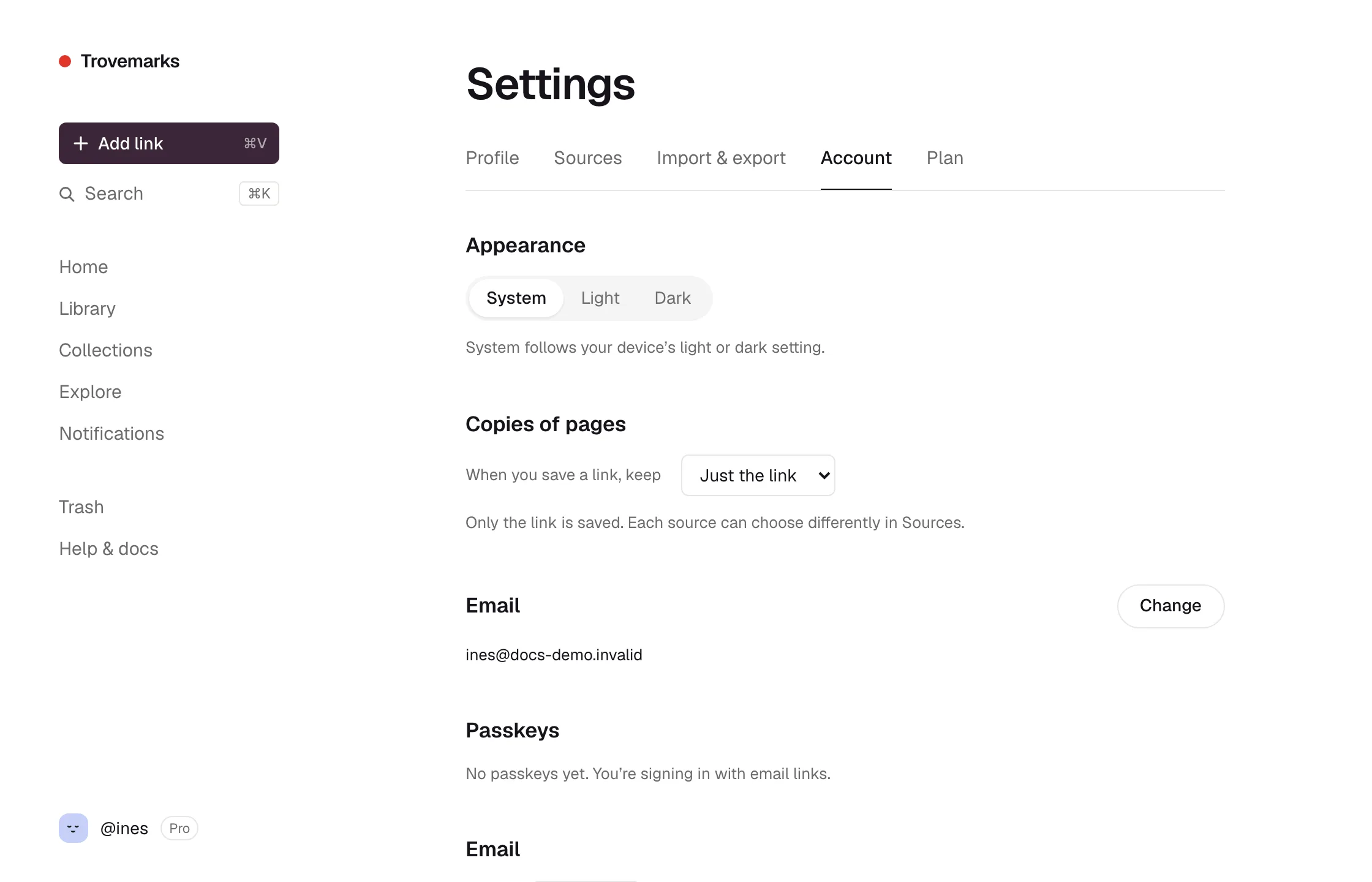
Pages change, move behind paywalls and disappear. Trovemarks can keep a copy of each page you save, so you can still read it, and search its words, whatever happens to the original.
Three settings
| Setting | What’s kept | Plan |
|---|---|---|
| Just the link | The address, title, description and icon. | Free |
| The text | The article’s readable text, cleaned up like a browser’s reader view. You can read it in Trovemarks and search it from your library. | Free |
| The full page | The text, plus the whole page as it looked, with its styles, fonts and images, and a screenshot. | Pro |
New accounts start with Just the link. Change it under Settings → Account → Copies of pages. Each source and collection can have its own setting too, so you could keep full pages only for links saved into Research.
Reading a copy
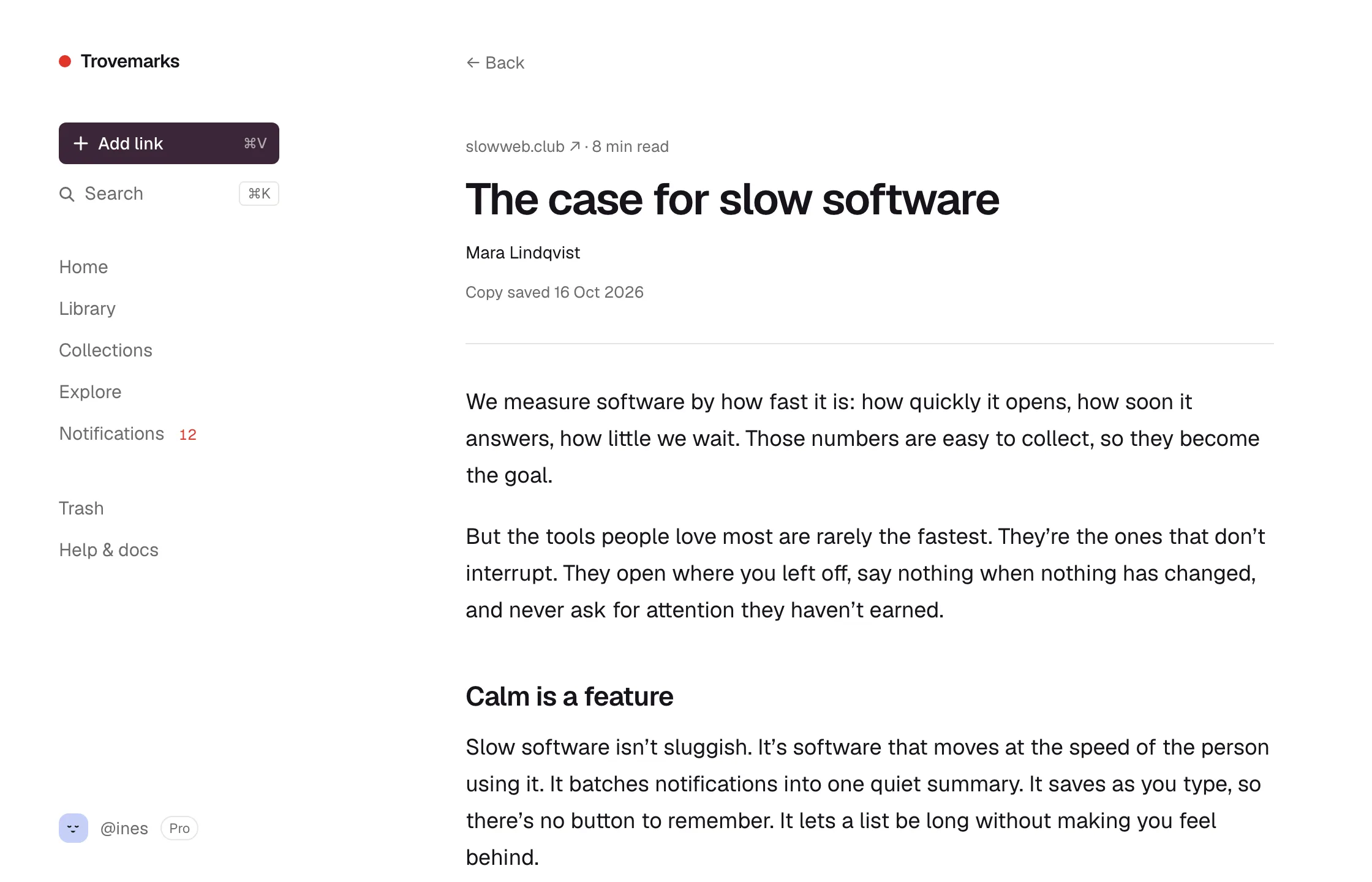
When a link has a copy, its details show Read for the text and, for full pages, Full page and Screenshot. The text opens in a quiet reader view in Trovemarks. The full page opens on its own, exactly as it was saved.
Full pages are stored with everything active removed: no scripts, no forms, no trackers. They can’t run code or phone home, and parts of a page that only worked with scripts (comments, videos, sign-in boxes) may look empty.
Saving a copy later
To keep a copy of a link you’ve already saved, open its details and, in the Copy row, open the ⋯ menu and choose Save text copy (or Save full copy on Pro). The same menu saves a fresh copy if the page has changed. To do it for many links at once, tick them in your library and choose Copy → Keep the text or Keep the full page. Applying a collection’s defaults does the same for every link in it.
When a page is gone
Trovemarks checks your links now and then. A link is marked Gone only after two checks a week apart both find it missing (the site says “not found”, or the domain no longer exists). Pages that are slow, refuse visitors or ask you to sign in are never marked gone.
Gone links show a small Gone label. Filter your library by Status → Gone to find them all, and open any one to read your saved copy, if you kept one.
What isn’t copied
- Pages you can only see when signed in: Trovemarks sees what a visitor who isn’t signed in sees.
- Apps that build the whole page with scripts may be saved as their loading screen.
- Videos and audio. The page around them is kept.
- PDFs, images and other files that aren’t web pages have no text to keep. With The full page (Pro), the original file is kept instead.
How long copies are kept
- Text is kept for as long as the link is, on every plan.
- Full pages and screenshots are kept while you’re on Pro, and for one month after Pro ends, in case you come back. After that they’re removed and the text stays. Your Plan page shows the date.
If several people save the same page within a day, they share one copy. Deleting your link removes your access to it; the copy itself goes once nobody’s link uses it.