Saving links
This page covers saving inside Trovemarks itself. To save from your browser, phone, an AI assistant or a script, see Integrations.
Paste anywhere
Copy a link, then press ⌘+V (Ctrl+V on Windows) on any page of the app, as long as you’re not typing in a text box. You can paste several links at once: everything that looks like a web address is saved.
Where it goes depends on what you’re looking at:
- On a collection, the link is saved into that collection.
- On your library filtered by a tag, the link gets that tag.
- Anywhere else, it’s saved with your defaults.
A message at the bottom of the screen confirms where it went.
The command bar
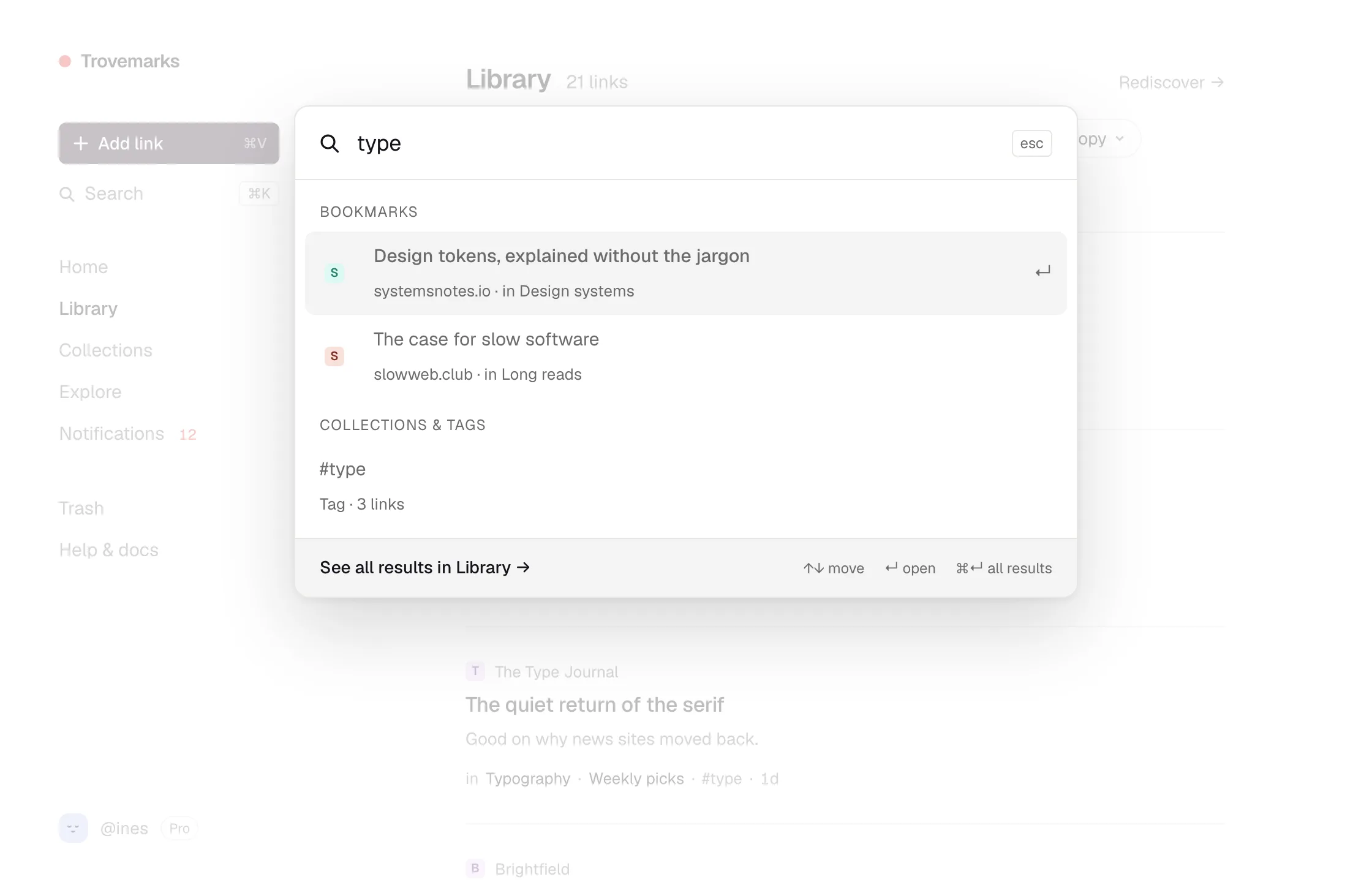
Press ⌘+K (or /, or click Search in the sidebar) to open the command bar. It does two things:
- Type to search your links and collections. ⌘+Enter opens the full search in your library.
- Paste a link to save it. Enter saves it straight away; Tab saves it and asks which collection it goes in. If it’s already saved, the command bar says so and offers to open it.
Add link in the sidebar opens the command bar ready for a link.
The save page
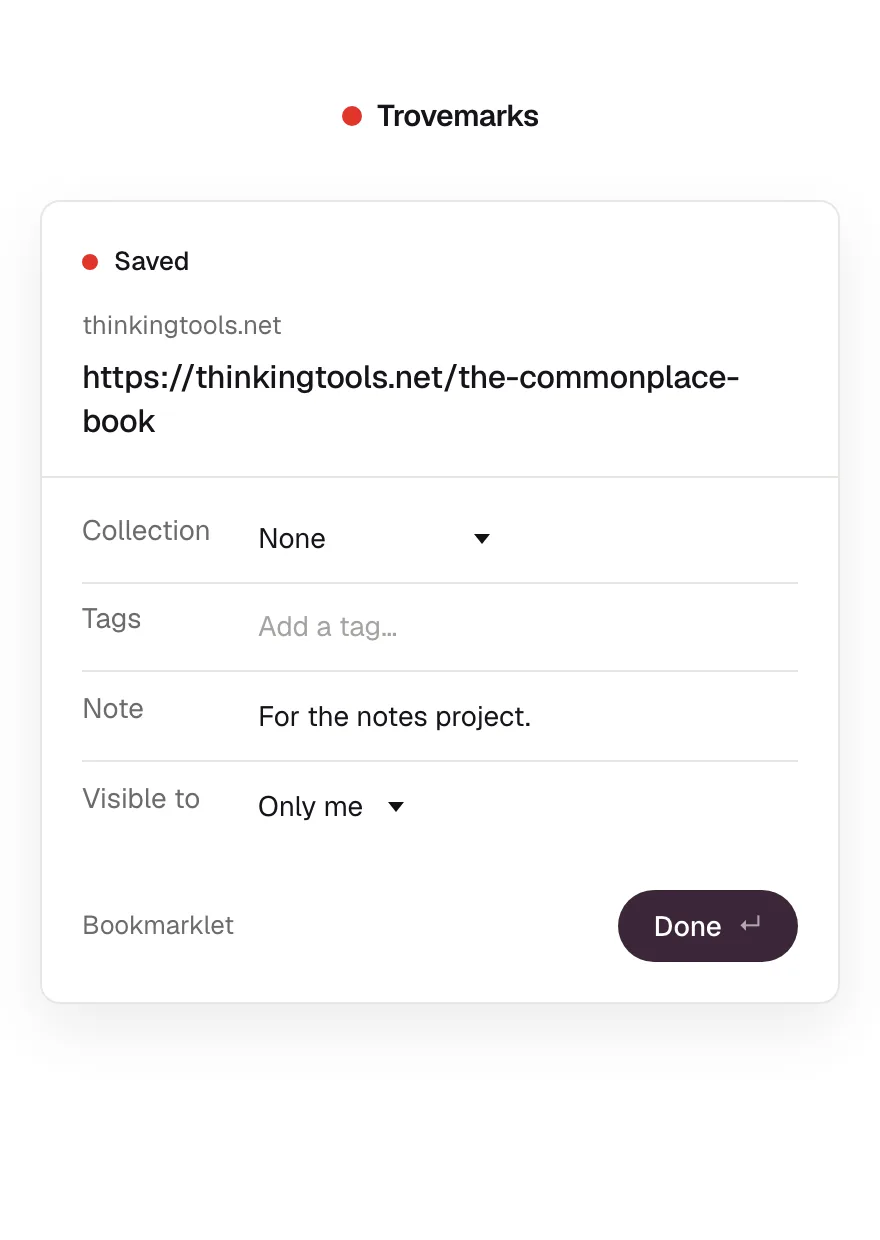
The bookmarklet, the address-bar trick and the Android share menu all open a small save page. The link is saved as soon as the page opens. The form below it lets you add it to a collection, add tags and a note, and choose who can see it; each change is saved as you make it.
What happens after you save
Saving returns straight away. Then, in the background:
- Details. Trovemarks visits the page and fills in its title, description, image and site icon. Until then the link shows its address. If you gave it your own title, yours is kept.
- A copy, if your settings ask for one. See Copies of pages.
- Suggestions (Pro). Related links, and tags and collections you might file it under, appear on the link’s page.
Sites that block visitors or need you to sign in sometimes don’t share their details. The link still works; open it and choose Rename to give it a title yourself.
Already saved?
Each address is saved once per account. Saving a link you already have doesn’t make a copy: it opens the one you have, and any new collections or tags you chose are added to it. Your title, note and visibility stay as they were.
Trovemarks tidies addresses before comparing them: tracking parameters like utm_source and fbclid are removed, and #section anchors are dropped. So https://example.com/post?utm_source=newsletter#comments and https://example.com/post count as the same link.
Editing a link
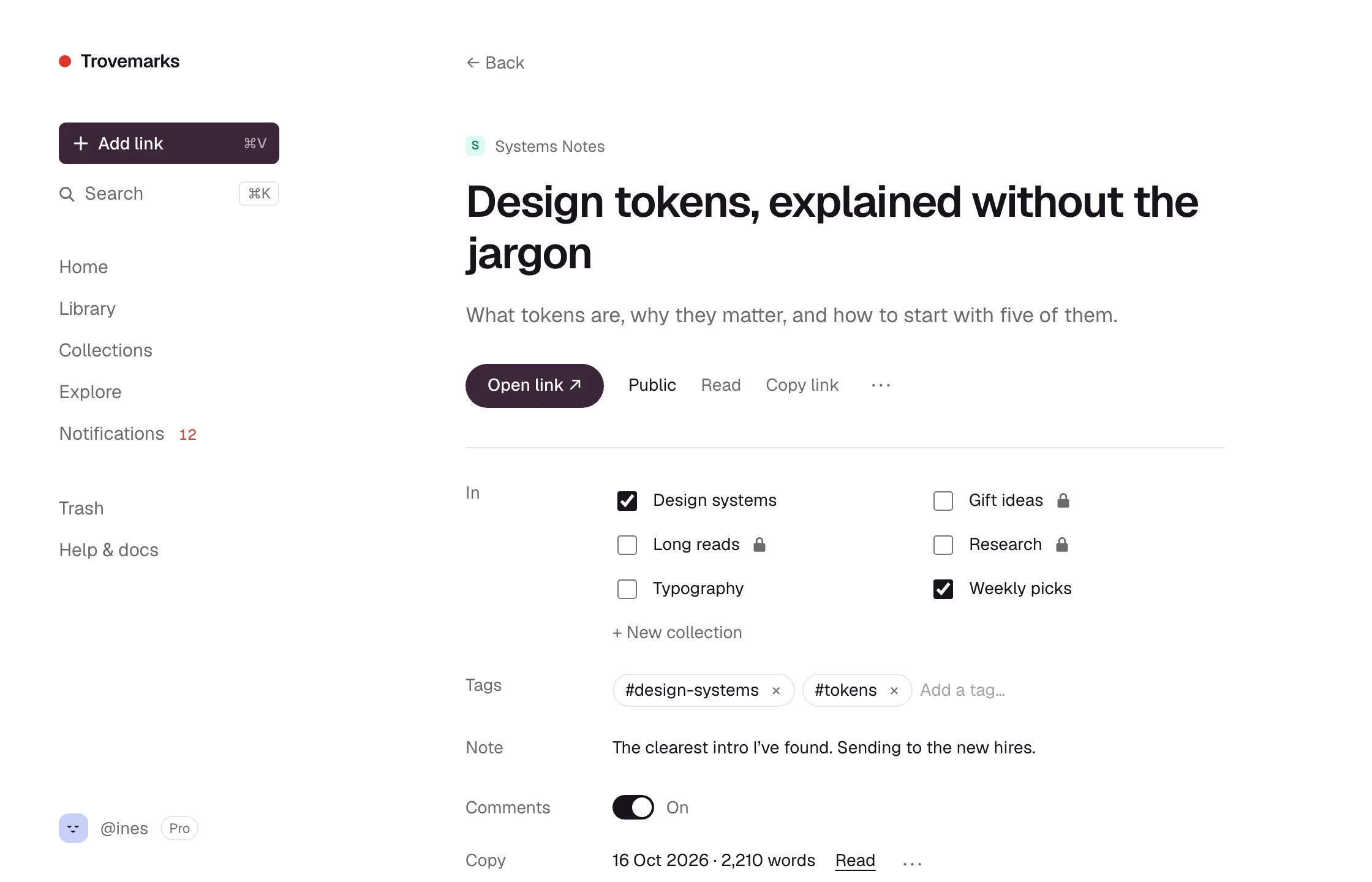
A link’s title opens the page itself. To open the link’s details in Trovemarks, click how long ago it was saved (like 3d) under the title. From there you can:
- Rename it, or change its address if the page has moved. Your note, tags, collections and copy stay with it.
- Write a note: why you kept it, or what to remember. On public links, your note shows instead of the page’s description.
- Change its tags and the collections it’s in.
- Make it public or private, and turn comments off.
- Read its saved copy, or save one now.
- See related links (a few on Free, all of them on Pro).
- Fetch page details again, if the title or image is out of date.
- Delete it. It goes to the trash for 30 days.