Your library
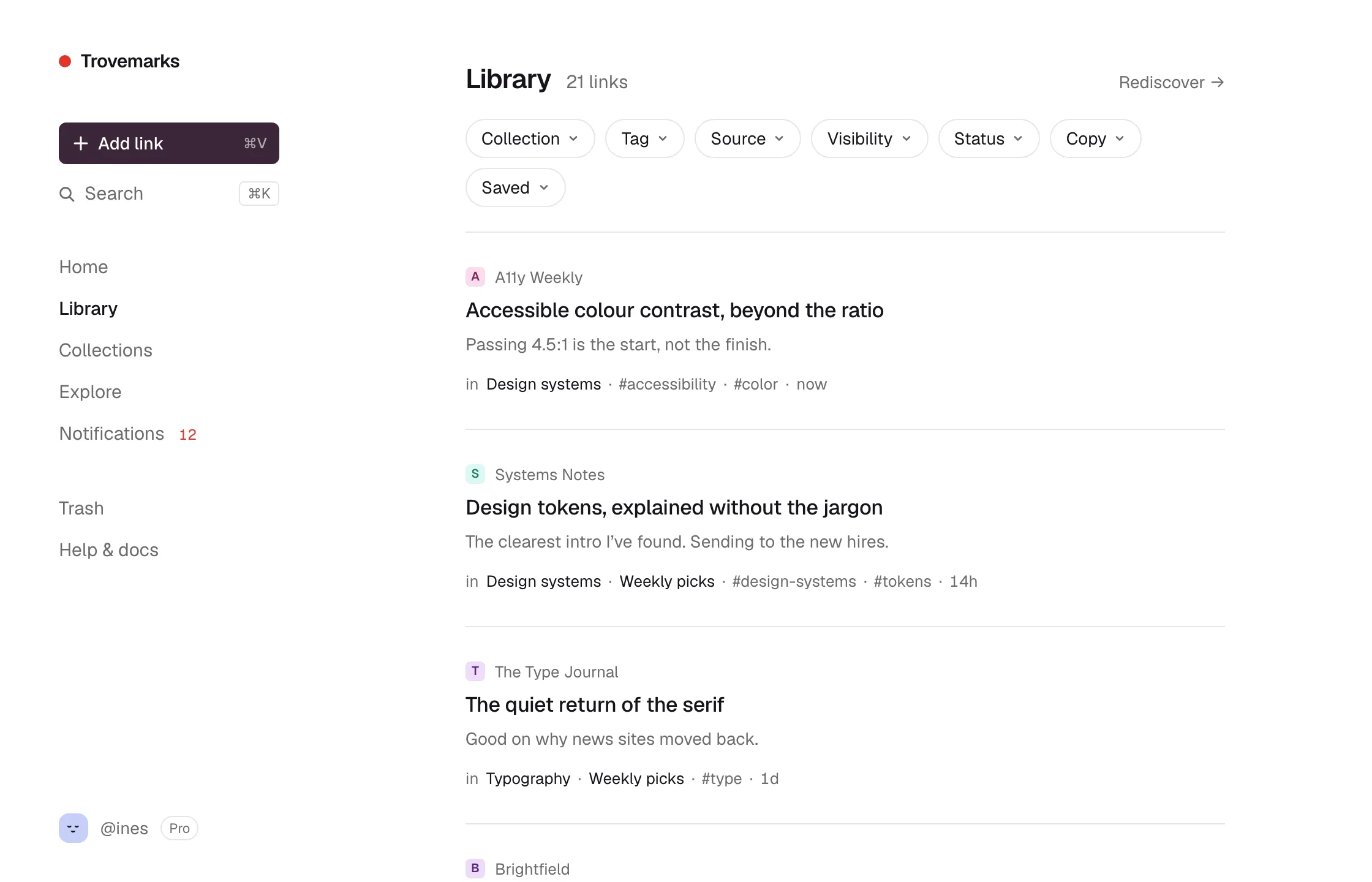
Library in the sidebar is every link you’ve saved, newest first, whatever collection it’s in.
Searching
Press ⌘+K and type, then press ⌘+Enter to search your whole library. Search looks at titles, descriptions, notes, and the text of saved copies. Title matches come first, then other details, then matches inside pages.
Search by meaning
It works from the text of each page, never your notes or tags. Your search words are sent to OpenAI to be turned into numbers that can be compared, without anything that identifies you. See the privacy policy.
Filtering
The chips along the top of the library narrow it down. Combine as many as you like.
| Filter | Shows |
|---|---|
| Collection | Links in any of the chosen collections. Unsorted is links in none. |
| Tag | Links with any of the chosen tags. |
| Source | Links saved from any of the chosen sources: the extension, an import, an API key… |
| Visibility | Only public, or only private, links. |
| Status | Gone: links whose page has disappeared. |
| Copy | Links with a saved copy, with a full-page copy, or with none. |
| Saved | The past week, month or year, or over a year ago. |
| Site | Links from one website. Click the site’s name above any link to filter by it. |
Filters are part of the page’s address, so you can bookmark a filtered view, or keep it open in a tab.
Changing many links at once
Choose Select, or hover over a link and tick the box that appears on its left. Click more links to add them; hold Shift to select a run. Select all picks every link that matches your filters and search, not just the ones on screen, up to 10,000.
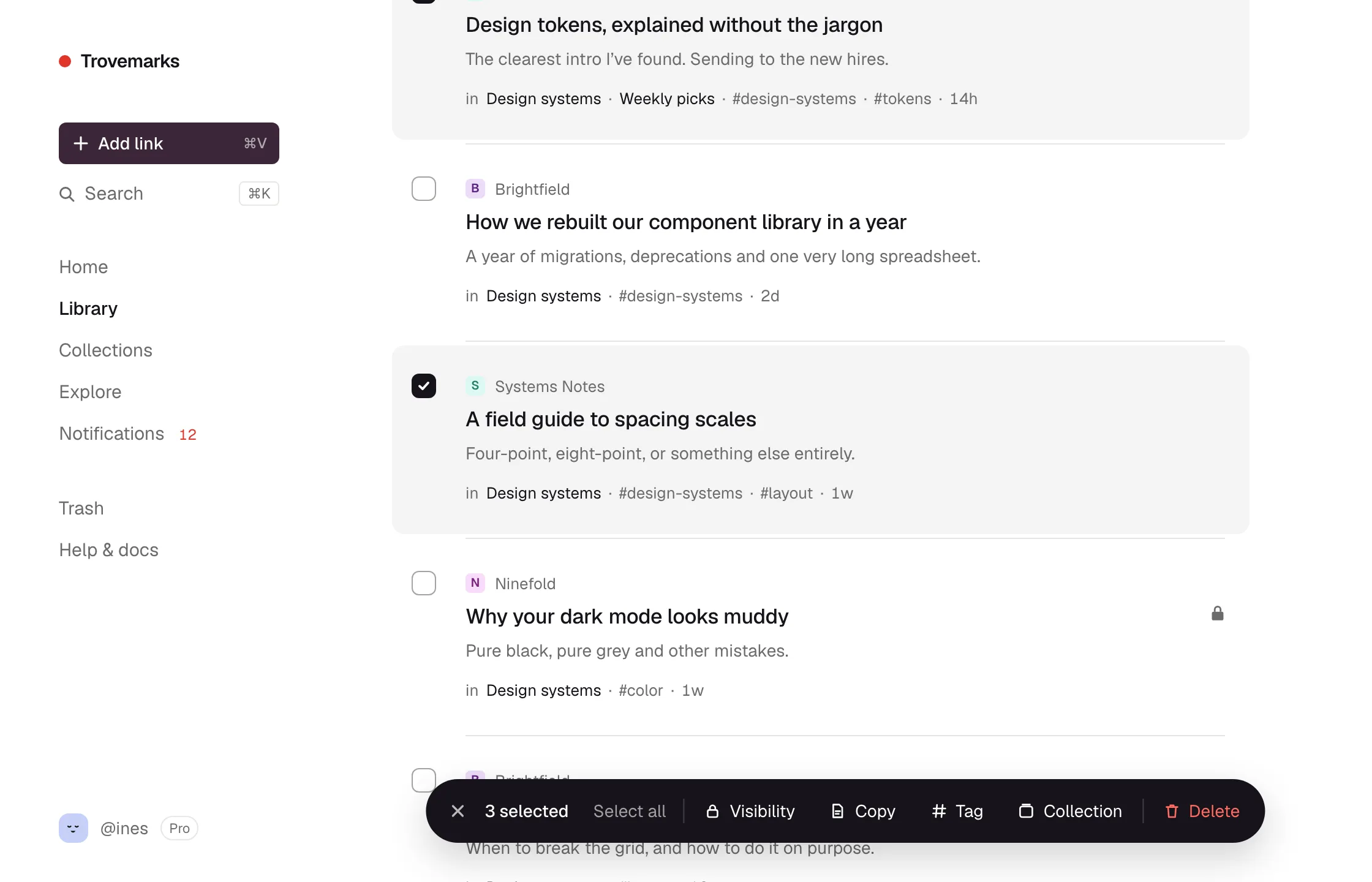
The bar at the bottom then offers:
- Visibility: make them all public or private.
- Copy: keep the text or full page of each, or remove their copies.
- Tag: add tags (new ones are created), or remove tags.
- Collection: add them to collections (new ones are created), or take them out.
- Delete: move them to the trash. Undo appears straight away, just in case.
Each choice says what it will do before you pick it: Make public, for instance, says how many of the selected links are private now and will start showing in your public collections.
Rediscover
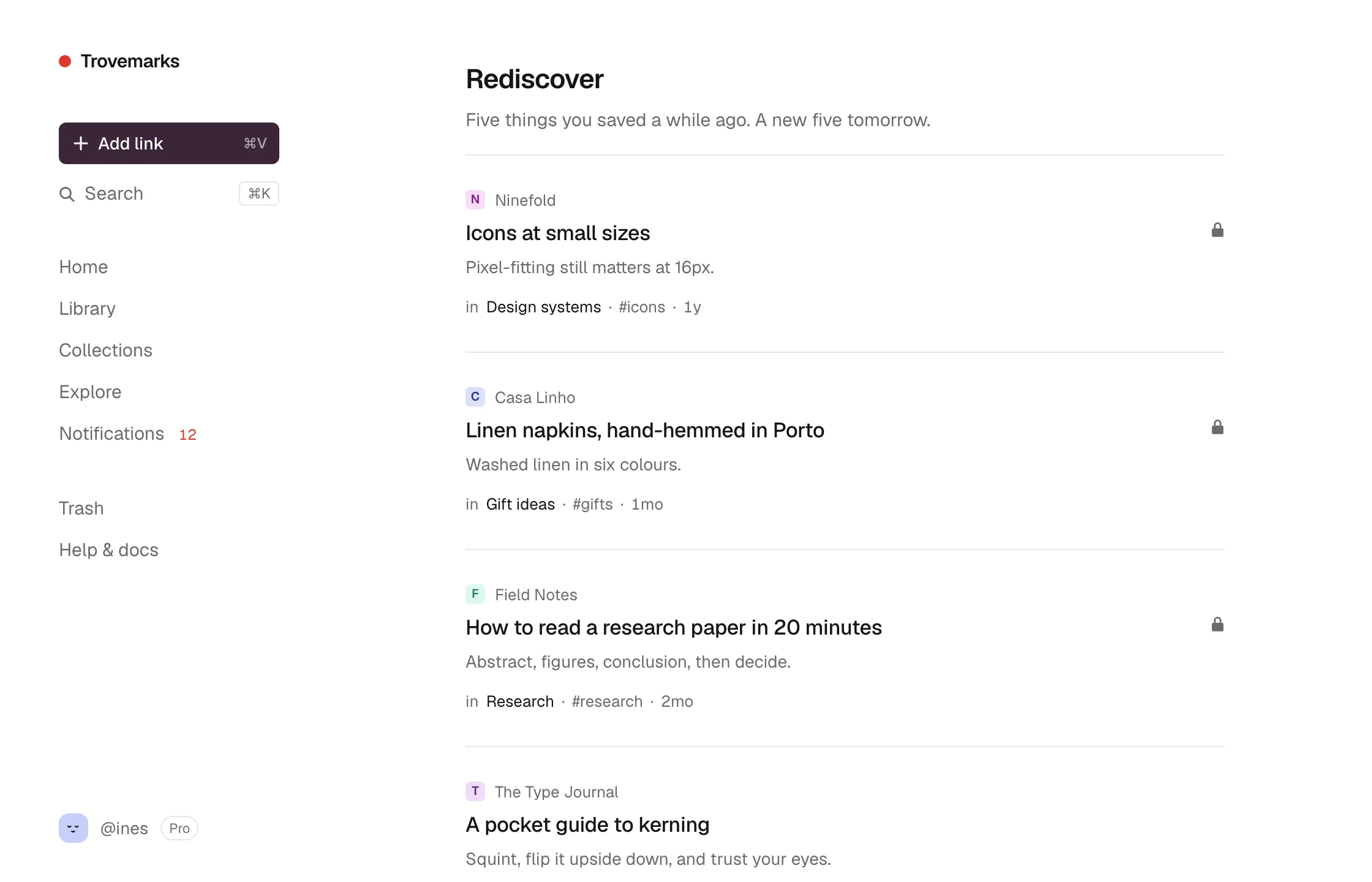
Rediscover (at the top of the library) shows five things you saved a while ago, picked fresh each day. It’s a gentle way to find the good stuff you forgot about.
Related links
Each link’s details end with Related: links about the same thing, from your library and from other people’s public collections. On Free you see the closest one from each, and how many more there are; Pro shows them all.
Trash
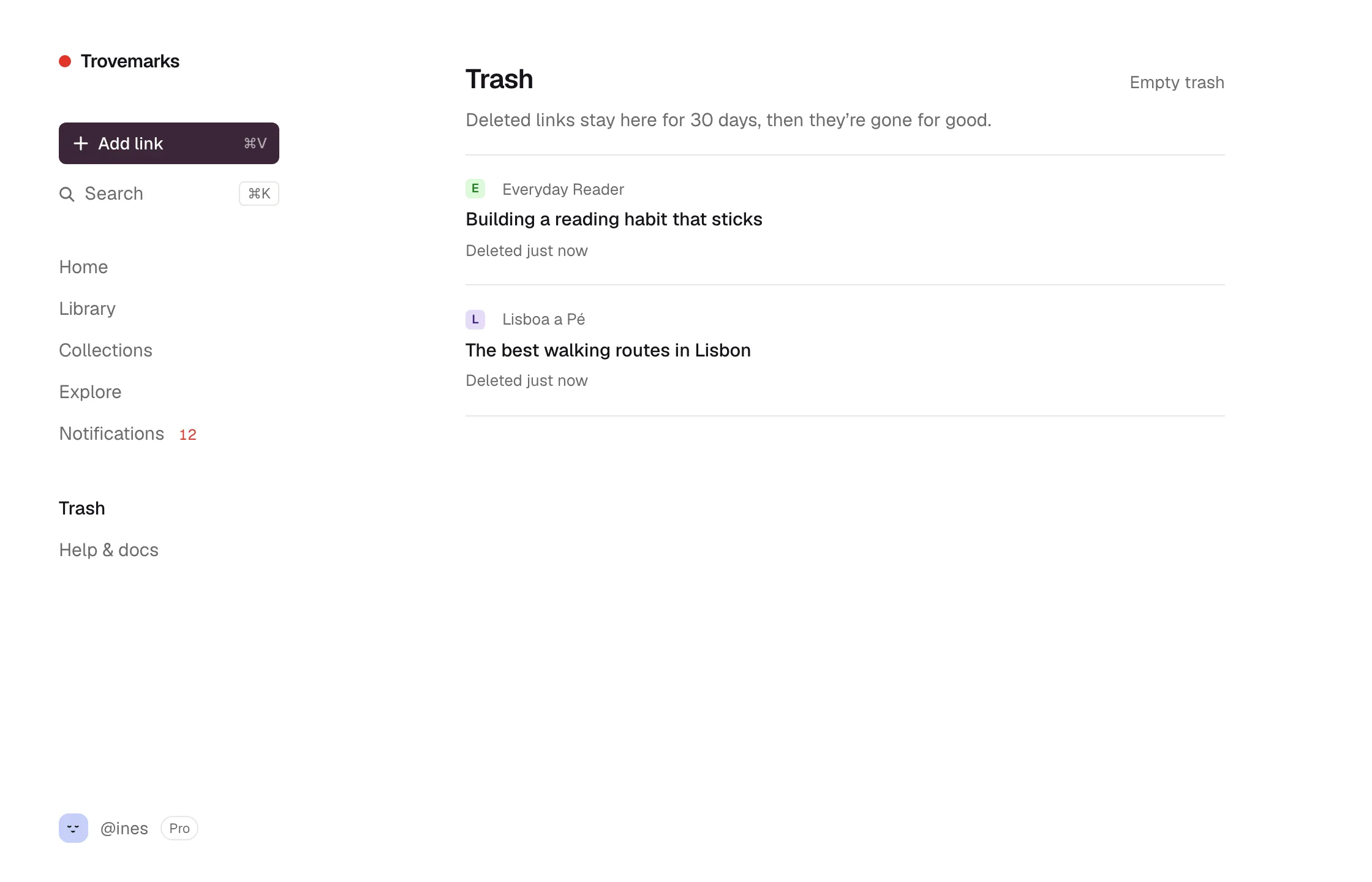
Deleting a link moves it to the Trash (at the top of the library) for 30 days. It leaves every collection and list at once, and comes back into the same collections, with the same tags, if you Restore it. After 30 days it’s gone for good, or straight away if you choose Delete in the trash or Empty trash.
AI assistants can move links to the trash and restore them, but they can’t empty it.