AI assistants
Trovemarks has an MCP server, the standard way AI assistants connect to other apps. Once connected, you can ask your assistant things like:
- “What have I saved about pricing pages?”
- “Save this article to my Weekly picks collection, tagged
ai.” - “What’s new in the collections I follow this week?”
- “Find links I saved over a year ago that I never put in a collection, and suggest where they go.”
- “Tag everything from nytimes.com in my library as
news.”
Every assistant uses the same address:
https://trovemarks.com/mcp
The first time, the assistant opens a Trovemarks page asking you to approve it. After that, it shows up in Settings → Sources with its own defaults, and you can disconnect it there at any time.
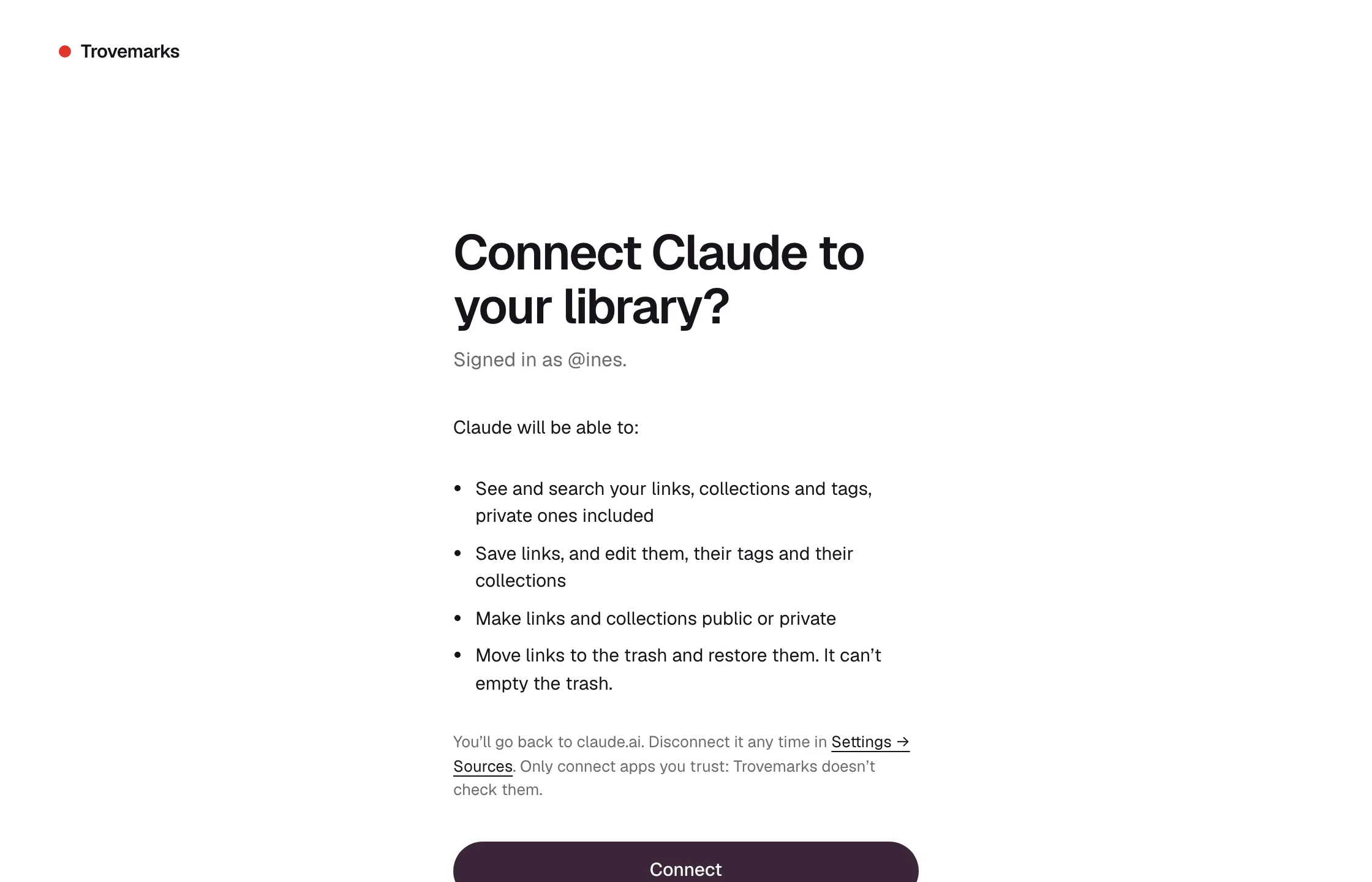
Claude
On claude.ai or the Claude apps:
- Open Settings → Connectors and choose Add custom connector.
- Name it Trovemarks and paste
https://trovemarks.com/mcpas the URL. - Choose Connect, and approve it on the Trovemarks page that opens.
In a chat, make sure Trovemarks is switched on in the tools menu, then ask away.
Claude Code
claude mcp add --transport http Trovemarks https://trovemarks.com/mcp
Then run /mcp in Claude Code and choose Trovemarks to sign in.
ChatGPT
Custom connectors need ChatGPT’s developer mode, which is available on some plans.
- Open Settings → Apps & Connectors → Advanced settings and turn on Developer mode.
- Back in Apps & Connectors, choose Create.
- Name it Trovemarks, paste
https://trovemarks.com/mcpas the MCP server URL, choose OAuth for authentication, and create it. - Approve it on the Trovemarks page that opens.
Cursor
Add this to ~/.cursor/mcp.json (or Settings → MCP → Add new MCP server):
{
  "mcpServers": {
    "Trovemarks": { "url": "https://trovemarks.com/mcp" }
  }
}
Cursor asks you to sign in the first time it uses it.
VS Code
Run MCP: Add Server from the command palette, choose HTTP, and paste https://trovemarks.com/mcp. Or add it to .vscode/mcp.json:
{
  "servers": {
    "Trovemarks": { "type": "http", "url": "https://trovemarks.com/mcp" }
  }
}
Other clients
Any client that supports remote MCP servers over HTTP with OAuth works: point it at https://trovemarks.com/mcp. Clients register themselves, so there’s nothing to set up first.
If a client can’t do OAuth, create an API key and send it as a bearer token (Authorization: Bearer tm_…).
What an assistant can do
| Tool | What it does |
|---|---|
list_bookmarks |
Find links by collection, tag, source, site, date, visibility, or words. |
search_by_meaning |
Find links about something, even without matching words (Pro). |
get_bookmark |
Read one link, with its note, tags, collections and saved text. |
list_collections, list_tags |
Your collections and tags, with counts. |
list_followed_collections, list_followed_links |
The collections you follow, and what’s new in them. |
save_bookmark |
Save a link, with a title, note, tags and collections. |
update_bookmark, update_bookmarks |
Change one link, or many at once: tags, collections, visibility, copies. |
create_collection, update_collection |
Make and rename collections, and change their defaults. |
delete_bookmarks, list_trash, restore_bookmarks |
Move links to the trash, and bring them back. |
Assistants are told to check with you before deleting anything or making anything public.
What an assistant can’t do
- Empty the trash. Deleted links stay in the trash for 30 days, so anything an assistant deletes can be restored.
- Touch your account: email, passkeys, billing, or other sources.
- See anyone else’s private links.