Getting started
This takes about five minutes. By the end you’ll have links saved, a collection to keep them in, and a way to save from wherever you find things.
1. Make an account
Go to trovemarks.com/signup and pick a username. It becomes your public address, trovemarks.com/username, though nothing is public until you choose.
There’s no password. You sign in with a passkey (Face ID, Touch ID, Windows Hello or a security key) or a sign-in link sent to your email. Right after signing up we’ll offer to add a passkey, which makes signing in a single tap from then on. See Your account for more.
2. Save a few links
The quickest way, in the app, is to paste. Copy a link, click anywhere on a page in Trovemarks that isn’t a text box, and press ⌘+V (or Ctrl+V). It’s saved straight away, into whatever collection or tag you’re looking at.
You can also click Add link in the sidebar, or press ⌘+K and paste.
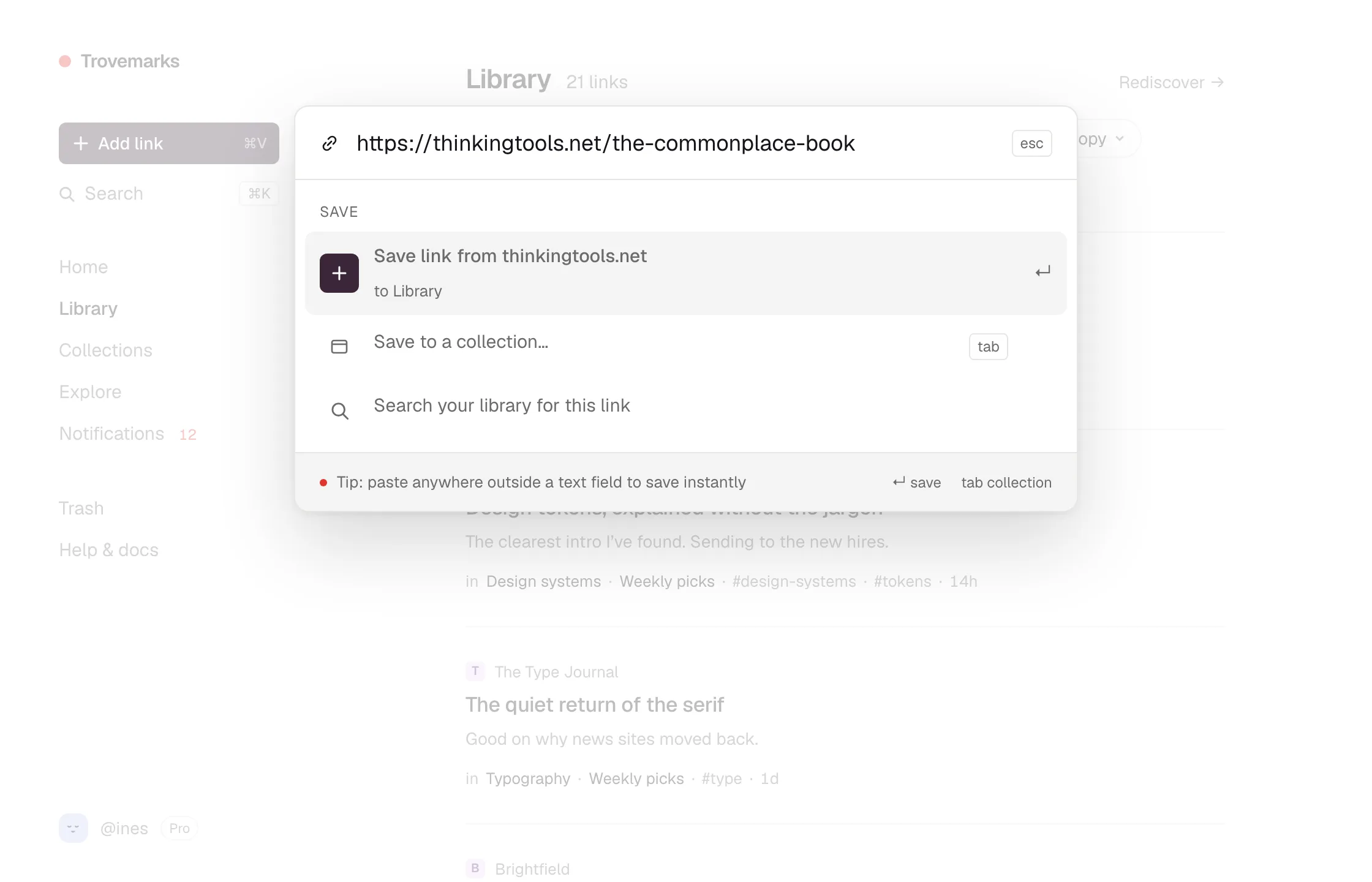
The title, description and site icon are fetched in the background, so a new link shows its address for a moment before its title appears.
3. Make a collection
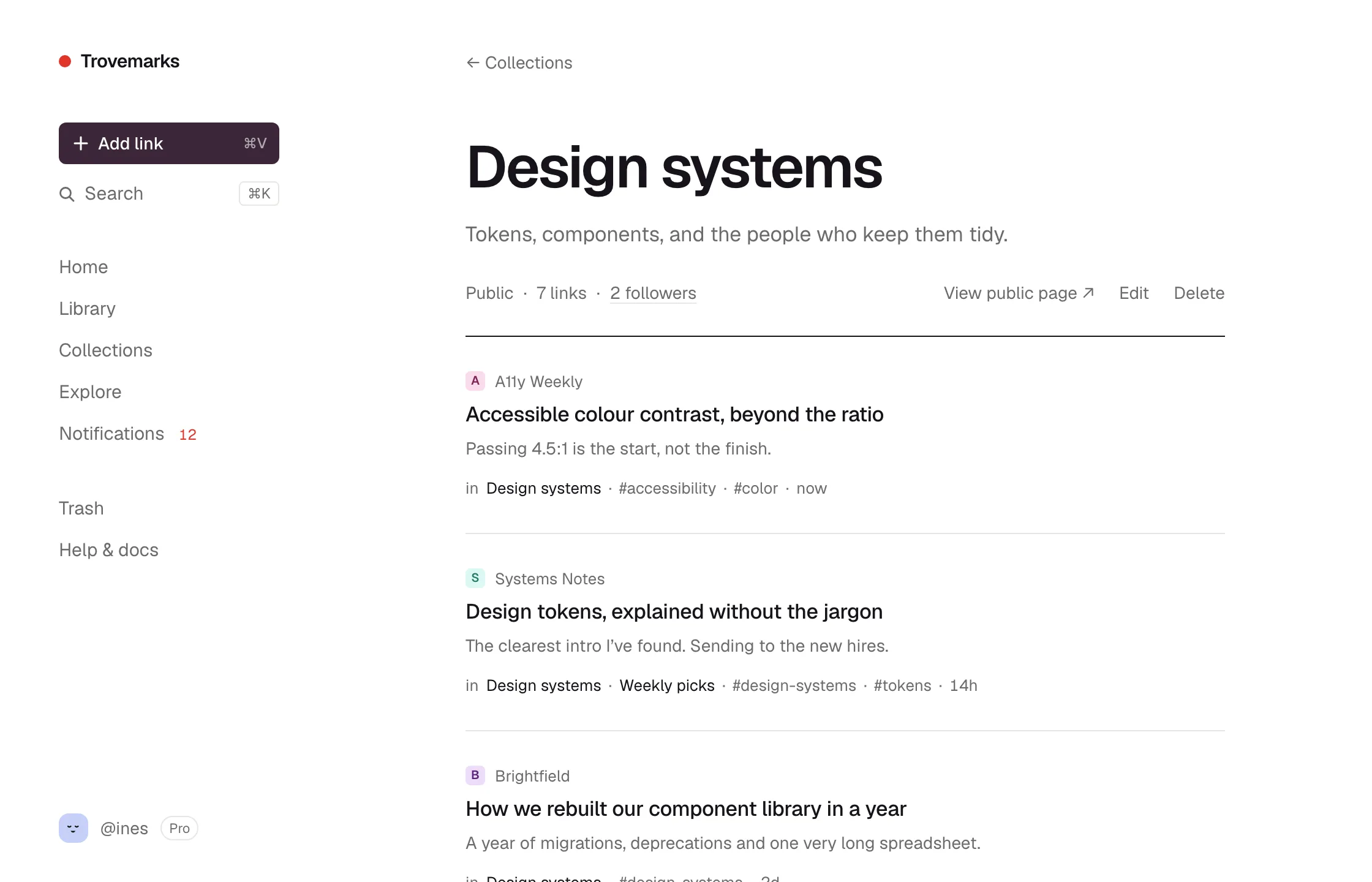
Collections are groups of links, like Long reads, Design systems or Gift ideas. Open Collections in the sidebar and choose New collection. Give it a title, and leave it private for now.
To file links, tick them in your library (a checkbox appears when you hover over a link) and choose Collection in the bar that appears, or pick a collection when you save. A link can be in as many collections as you like.
4. Save from where you find things
Most good links turn up somewhere other than Trovemarks: in a browser tab, a newsletter, a chat. Set up one or two of these:
| Where you are | Use |
|---|---|
| A desktop browser | The browser extension, or the bookmarklet in Safari |
| Your phone | The share menu on Android or iPhone |
| Talking to Claude or ChatGPT | AI assistants |
| Raycast on a Mac | The Raycast extension |
| A script or another app | The API |
Each one becomes a source with its own defaults. For example, links from your phone can go straight into a To read collection.
5. Share, if you want to
Everything starts private. When a collection is ready for other people, open it, choose Edit and set Who can see it to Public. It gets its own page at trovemarks.com/you/collection-name, with an RSS feed, and anyone can follow it. Read Sharing before you do: private links in a public collection stay private.
6. Follow a few collections
Open Explore and follow collections by people whose taste you trust. What they add shows up on your Home page under Following, and in an email digest if you want one. See Following.