Browser extension
The extension is the fastest way to save on a computer. It works in Chrome, Edge, Brave, Arc, Vivaldi, Opera and other Chromium browsers. Firefox is coming soon.
Connecting it
- Install the extension and click its icon (the red dot) in the toolbar. Pin it so it’s always visible.
- Choose Connect. A Trovemarks tab opens; sign in if you need to.
- The page connects the extension by itself and says You’re connected. Close the tab, and save away.
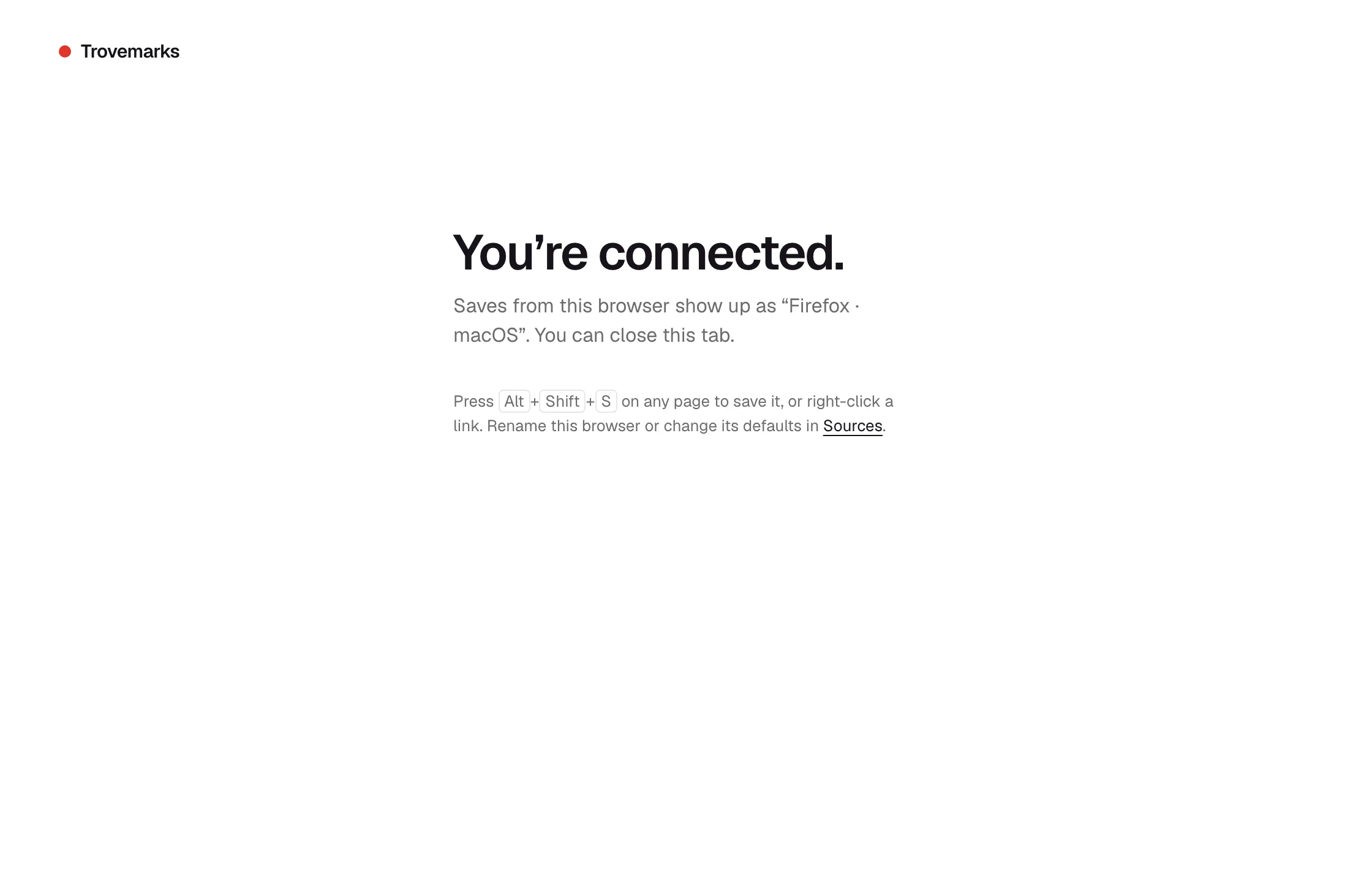
The extension gets a key of its own, tied to that browser; it never sees how you sign in. The browser shows up in Settings → Sources with the browser’s name, where you can give it defaults or disconnect it.
Saving the page you’re on
Click the extension’s icon, or press Alt+Shift+S. The page is saved straight away, and the popup lets you:
- Choose a collection.
- Add tags.
- Write a note: Why are you keeping this?
- Choose who it’s visible to: only you, or everyone.
Changes save as you make them. Close the popup when you’re done.
If the page is already saved, the popup opens it, showing what you set before, so you can change it.
Saving any link
Right-click a link on any page and choose Save link to Trovemarks, or right-click the page itself and choose Save page to Trovemarks. It’s saved with the extension’s defaults.
Keyboard shortcut
Alt+Shift+S opens the popup and saves the page. To change it, go to chrome://extensions/shortcuts in Chrome-based browsers, or Manage Extension Shortcuts on Firefox’s add-ons page.
Bookmark sync
Bookmark sync saves the bookmarks you make in your browser to Trovemarks, so you can keep using the star in the address bar. It’s off until you turn it on, in the extension’s settings (right-click its icon, then Options) or in Settings → Sources for that browser.
When you turn it on:
- Your browser asks for permission to read your bookmarks.
- The bookmarks you already have are copied to Trovemarks, privately. Folders become collections.
- New bookmarks you make are saved as you make them.
Sync is one-way. Moving, renaming or deleting bookmarks in your browser afterwards doesn’t change Trovemarks, and Trovemarks never changes your browser’s bookmarks.
Privacy
The extension reads a tab’s address and title only when you save it. It doesn’t see your history or the pages you only visit, and it talks only to trovemarks.com. The privacy policy has the details.
Disconnecting
Disconnect in the extension’s options forgets the connection in that browser. To make its key stop working everywhere, disconnect the browser in Settings → Sources. Links it saved stay in your library.